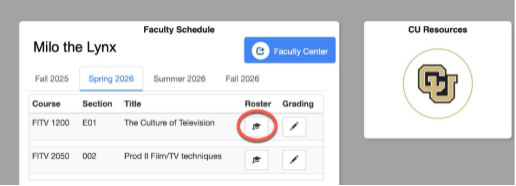
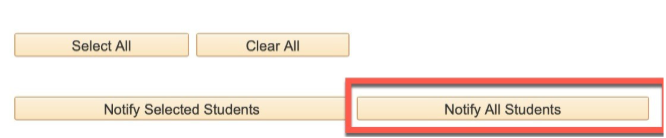
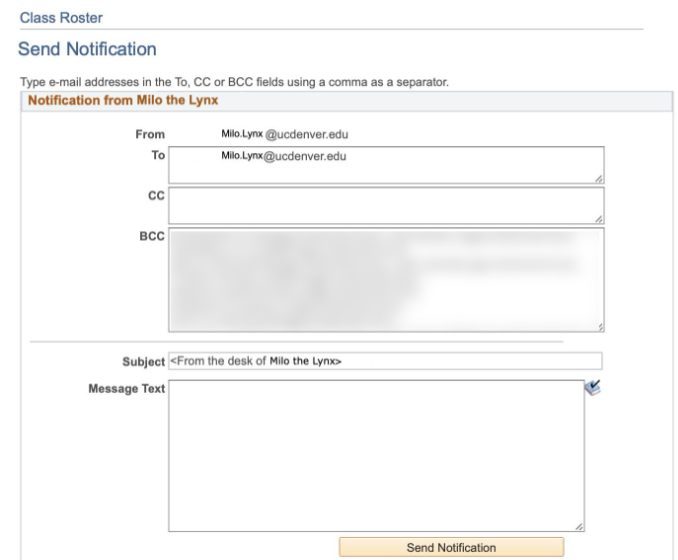
Teaching during times of potential disruption requires creative and flexible thinking about how instructors can support students. Technology outages can happen unexpectedly, whether it’s Canvas, Zoom, or another key tool. The Teaching Continuity Plan provides quick steps and resources to help you stay connected with your students and keep teaching on track.
Before submitting a help request or troubleshooting on your own, it’s a good idea to check the official service status pages. Many teaching and learning tools like Canvas, Microsoft 365, and Panopto rely on large cloud platforms that can experience regional or global outages. These pages provide real-time updates on known issues, scheduled maintenance, and recovery progress, helping faculty and staff quickly determine whether a problem is widespread or specific to their account or device.
| Service | Description | Status Page |
|---|---|---|
| CU Denver / CU Anschutz OIT Services | The internal IT service status page for the CU Denver and CU Anschutz campuses; covers core university-systems (email, VPN, network, Canvas, Panopto, Lockdown Browser, etc.). The OIT status page also provides workarounds when available. | CU Anschutz / CU Denver OIT Status |
| Canvas LMS (by Instructure) | The learning-management system used by all courses; shows component-status of Canvas, mobile apps, data services etc. | Canvas / Instructure Status |
| Microsoft 365 | Microsoft’s cloud productivity suite (Outlook/Teams/OneDrive etc.) — widely used for teaching and administrative support. | Microsoft 365 Status |
| Panopto Video Platform | The video-recording, streaming and lecture-capture system; important for asynchronous and backup teaching delivery. | Panopto Trust / Status |
| Zoom | Zoom is a cloud-based video conferencing platform that enables real-time communication, such as video calls, audio conferences, webinars, and live chats, on a variety of devices | Zoom Status |
| Respondus Lockdown Browser | A specialized web browser that secures a computer during an online exam. | Respondus Status |
When unexpected outages occur, keeping students informed is key. This section provides clear steps and alternative options for reaching your class when major systems like Canvas or Microsoft 365 are unavailable. Review each scenario below to find recommended communication methods and proactive tips to ensure your students stay connected and informed, no matter the situation.
OIT is committed to communicating and restoring access to teaching and learning technology any time there is an outage. The OIT Service Desk serves as a hub for collecting reports of outages, so feel free to reach out anytime a system isn’t responding as expected. In addition to reporting from the Service Desk, Canvas and Panopto are attached to monitors which alert OIT staff when either system is not behaving as expected.
Once a confirmed service degradation or outage is identified, a message is posted to the OIT Status page which identifies the issue and shares any workarounds. If the incident involves a cloud-based service like Canvas, Office 365, or Panopto, OIT engages that vendor to make sure they are aware of the issue and are working on a solution.
Once a fix is identified and implemented, the OIT status page will be updated to a monitoring state for a minimum of two hours. If the service has been stable during this monitoring period (passes testing, monitors show stability, no new tickets), the issue is moved to a resolved status.
Advanced Planning for an Outage
These are essential steps to maintain communication and access to course materials during an outage:
These steps add extra resilience, but may not be critical for short outages:
Familiarize Yourself with Microsoft Teams Class. Learn how to use Teams Class as an alternative LMS for announcements and file sharing.
Schedule a Consultation with OIT Staff. Get personalized guidance on outage preparedness by scheduling a consultation. (Link coming soon)
Prepare Offline Teaching Materials. Have PDFs of key documents ready to share via email or Teams.
Plan for Assessments. Identify alternate ways to deliver quizzes/exams if Respondus or Canvas is down.